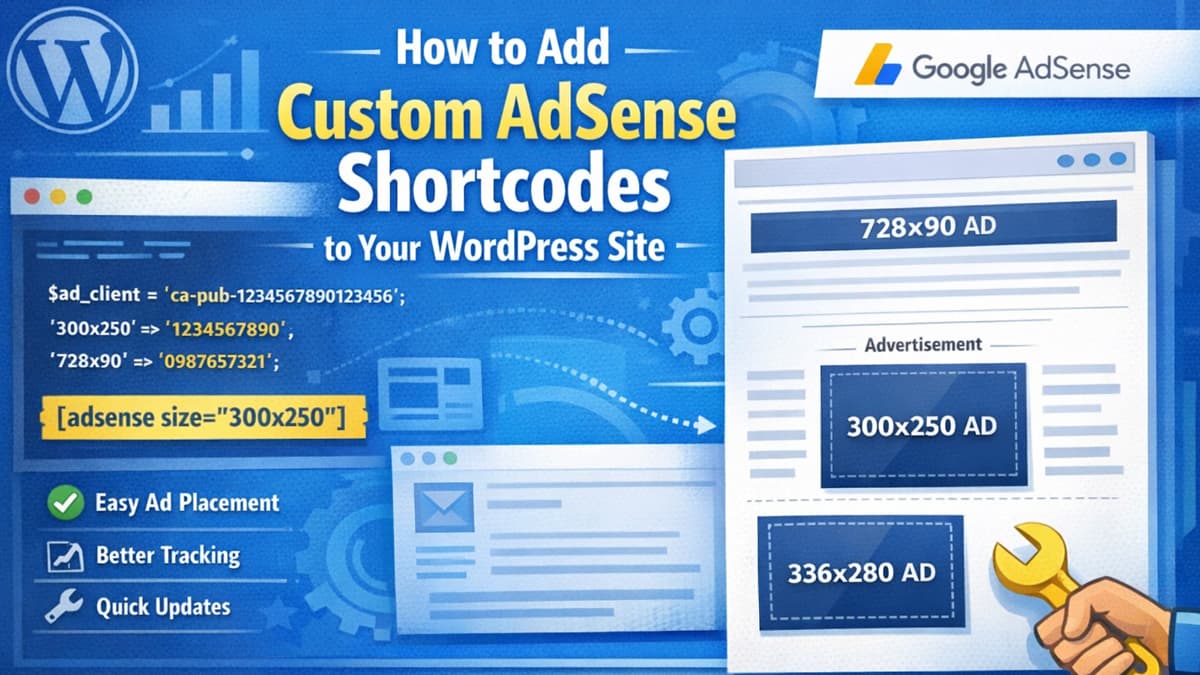
WordPress Shortcode to Control AdSense Ad Placement
If you're looking for precise control over AdSense ad placement in your WordPress posts and pages, this guide will walk you through implementing a flexible AdSense shortcode that supports multiple ad sizes.
Why Use a Custom AdSense Shortcode?
WordPress doesn't have built-in support for AdSense shortcodes, which means you're often stuck copying and pasting ad code throughout your content or having to install yet another plugin. A custom shortcode offers several advantages:
- Consistent formatting across all your ads
- Easy ad placement with simple shortcode syntax
- Better tracking with unique slot IDs for different ad sizes
- Quick updates - change ad settings in one place instead of editing every post
- Cleaner content - no messy HTML in your post editor
Prerequisites
Before you begin, make sure you have:
- An active Google AdSense account
- Your AdSense Publisher ID (looks like
ca-pub-1234567890123456) - Ad unit slot IDs created in your AdSense dashboard
- You may need to turn off Google Adsense's Auto Ads to prevent conflicts with manually placed ads
- Access to your WordPress theme's
functions.phpfile
The Complete Code
Add the following code to your theme's functions.php file (preferably in a child theme) or create a custom plugin:
/**
 * AdSense Fixed Size Ad Shortcode
 *
 * This shortcode displays AdSense ads with fixed dimensions in WordPress posts and pages.
 * Different ad sizes automatically use their assigned ad slot IDs for better tracking.
 *
 * SETUP:
 * 1. Replace 'ca-pub-XXXXXXXXXXXXXXXX' with your AdSense Publisher ID
 * 2. Replace each 'REPLACE_WITH_YOUR_AD_UNIT_ID_X' in the $ad_slots array with actual slot IDs from AdSense
 * 3. Add more size/slot pairs to the array as needed
 *
 * BASIC USAGE:
 * [adsense size="300x250"]    - Medium Rectangle (default)
 * [adsense size="728x90"]     - Leaderboard
 * [adsense size="336x280"]    - Large Rectangle
 * [adsense size="300x600"]    - Half Page
 *
 * ADVANCED USAGE:
 * [adsense size="300x250" slot="1234567890"]     - Override with specific slot ID
 * [adsense size="728x90" class="my-custom-class"] - Add custom CSS class
 *
 * COMMON AD SIZES:
 * - 300x250   Medium Rectangle (most popular)
 * - 336x280   Large Rectangle
 * - 728x90    Leaderboard
 * - 300x600   Half Page
 * - 320x50    Mobile Banner
 * - 320x100   Large Mobile Banner
 * - 970x250   Billboard
 * - 970x90    Super Leaderboard
 * - 160x600   Wide Skyscraper
 * - 300x1050  Portrait
 *
 * @param array $atts {
 *     Shortcode attributes
 *     @type string $size  Ad dimensions in WIDTHxHEIGHT format (default: '300x250')
 *     @type string $slot  Optional ad slot ID to override automatic selection
 *     @type string $class Optional CSS class for wrapper div (default: 'adsense-wrapper')
 * }
 * @return string HTML markup for the AdSense ad unit
 */
function custom_adsense_shortcode($atts) {
    $atts = shortcode_atts(
        array(
            'size' => '300x250',
            'class' => 'adsense-wrapper',
            'slot' => '' // Optional: override default slot
        ),
        $atts,
        'adsense'
    );

    $size_parts = explode('x', $atts['size']);
    $width = isset($size_parts[0]) ? intval($size_parts[0]) : 300;
    $height = isset($size_parts[1]) ? intval($size_parts[1]) : 250;

    // REPLACE WITH YOUR GOOGLE ADS PUBLISHER ID
    $ad_client = 'ca-pub-XXXXXXXXXXXXXXXX';

    // Define different slots for different sizes
    $ad_slots = array(
        '300x250' => 'REPLACE_WITH_YOUR_AD_UNIT_ID_1',
        '728x90' => 'REPLACE_WITH_YOUR_AD_UNIT_ID_2',
        '336x280' => 'REPLACE_WITH_YOUR_AD_UNIT_ID_3',
        '300x600' => 'REPLACE_WITH_YOUR_AD_UNIT_ID_4',
    );

    // Use custom slot if provided, otherwise use size-based slot
    if (!empty($atts['slot'])) {
        $ad_slot = $atts['slot'];
    } else {
        $ad_slot = isset($ad_slots[$atts['size']]) ? $ad_slots[$atts['size']] : $ad_slots['300x250'];
    }

    $output = '<div class="' . esc_attr($atts['class']) . '" style="text-align: center; margin: 20px 0;">';
    $output .= '<ins class="adsbygoogle"';
    $output .= ' style="display:inline-block;width:' . $width . 'px;height:' . $height . 'px"';
    $output .= ' data-ad-client="' . esc_attr($ad_client) . '"';
    $output .= ' data-ad-slot="' . esc_attr($ad_slot) . '"></ins>';
    $output .= '</div>';

    return $output;
}
add_shortcode('adsense', 'custom_adsense_shortcode');

/**
 * Initialize all AdSense ads on the page at once
 * This prevents conflicts when multiple ads are present
 */
function custom_adsense_footer_script() {
    global $post;
    if (is_a($post, 'WP_Post') && has_shortcode($post->post_content, 'adsense')) {
        ?>
        <script>
        (function() {
            if (typeof adsbygoogle !== 'undefined') {
                var ads = document.querySelectorAll('.adsbygoogle');
                for (var i = 0; i < ads.length; i++) {
                    (adsbygoogle = window.adsbygoogle || []).push({});
                }
            }
        })();
        </script>
        <?php
    }
}
add_action('wp_footer', 'custom_adsense_footer_script');
Configuration Steps
Step 1: Get Your AdSense Publisher ID
- Log into your Google AdSense account
- Navigate to Account → Account Information
- Copy your Publisher ID (it starts with
ca-pub-)
Step 2: Create Ad Units in AdSense
For each ad size you want to use:
- Go to Ads → Overview → By ad unit
- Click Display ads
- Enter a descriptive name (e.g., "Blog Post - 300x250")
- Select Fixed size and choose your dimensions
- Click Create
- Copy the Ad slot ID (the numeric value in
data-ad-slot)
Step 3: Update the Code
Replace the placeholder values in the code:
// Replace this with your actual Publisher ID
$ad_client = 'ca-pub-1234567890123456';

// Replace these with your actual Ad Slot IDs
$ad_slots = array(
    '300x250' => 'AAAAAAAAAAAA',
    '728x90' => 'BBBBBBBBBBBB',
    '336x280' => 'CCCCCCCCCCCC',
    '300x600' => 'DDDDDDDDDDDD',
);
Step 4: Add More Ad Sizes (Optional)
You can easily add more ad sizes to the array:
$ad_slots = array(
    '300x250' => 'AAAAAAAAAAAA',
    '728x90' => 'BBBBBBBBBBBB',
    '336x280' => 'CCCCCCCCCCCC',
    '300x600' => 'DDDDDDDDDDDD',
    '320x50' => 'EEEEEEEEEEEE',    // Mobile banner
    '970x250' => 'FFFFFFFFFFFF',   // Billboard
);
How to Use the Shortcode
Basic Usage
Simply insert the shortcode in your post or page editor:
[adsense size="300x250"]
This will display a 300×250 ad using the slot ID you configured for that size.
Different Ad Sizes
Use any of the common AdSense sizes:
[adsense size="728x90"]     // Leaderboard for article headers
[adsense size="336x280"]    // Large rectangle for sidebars
[adsense size="300x600"]    // Half-page for sidebars
[adsense size="320x100"]    // Mobile banner
Advanced Options
Override the slot ID for a specific placement:
[adsense size="300x250" slot="9876543210"]
This is useful for A/B testing or tracking specific ad positions separately.
Add a custom CSS class for styling:
[adsense size="728x90" class="header-ad"]
Then style it in your theme's CSS:
.header-ad {
    margin: 30px 0;
    padding: 20px;
    background: #f5f5f5;
}
Best Practices
Ad Placement Strategy
- Above the fold: Use 728×90 leaderboards at the top of articles
- Within content: Place 300×250 or 336×280 ads after the first few paragraphs
- Sidebar: Use 300×250, 336×280, or 300×600 units
- Mobile: Stick to 320×50 or 320×100 for mobile devices
Performance Tracking
Since each ad size uses its own slot ID, you can track performance in your AdSense dashboard:
- Go to Reports in AdSense
- Add Ad unit as a dimension
- Compare click-through rates and earnings across different sizes and positions
WordPress Editor Tips
In the Block Editor (Gutenberg):
- Add a Shortcode block
- Type or paste your shortcode
- The ad will display on the published page
In the Classic Editor:
- Simply type the shortcode directly in your content
- Switch to Visual mode to see a placeholder
Troubleshooting
Ads Not Showing
- Check your AdSense account: Make sure it's approved and active
- Verify IDs: Double-check your Publisher ID and Slot IDs
- Ad blockers: Disable any ad blockers while testing
- New accounts: It can take 24-48 hours for new AdSense accounts to start serving ads
Wrong Ad Size Displaying
- Make sure you're using the format
size="WIDTHxHEIGHT"(lowercase 'x') - Verify the dimensions are correct for your chosen ad size
- Check that the slot ID matches the size in your AdSense dashboard
Conclusion
With this custom AdSense shortcode, you have complete control over ad placement in your WordPress content. Multiple slot IDs gives you excellent tracking capabilities, making it easy to optimize your ad revenue over time.
Remember to monitor your AdSense performance regularly and experiment with different ad sizes and placements to find what works best for your audience and content.